


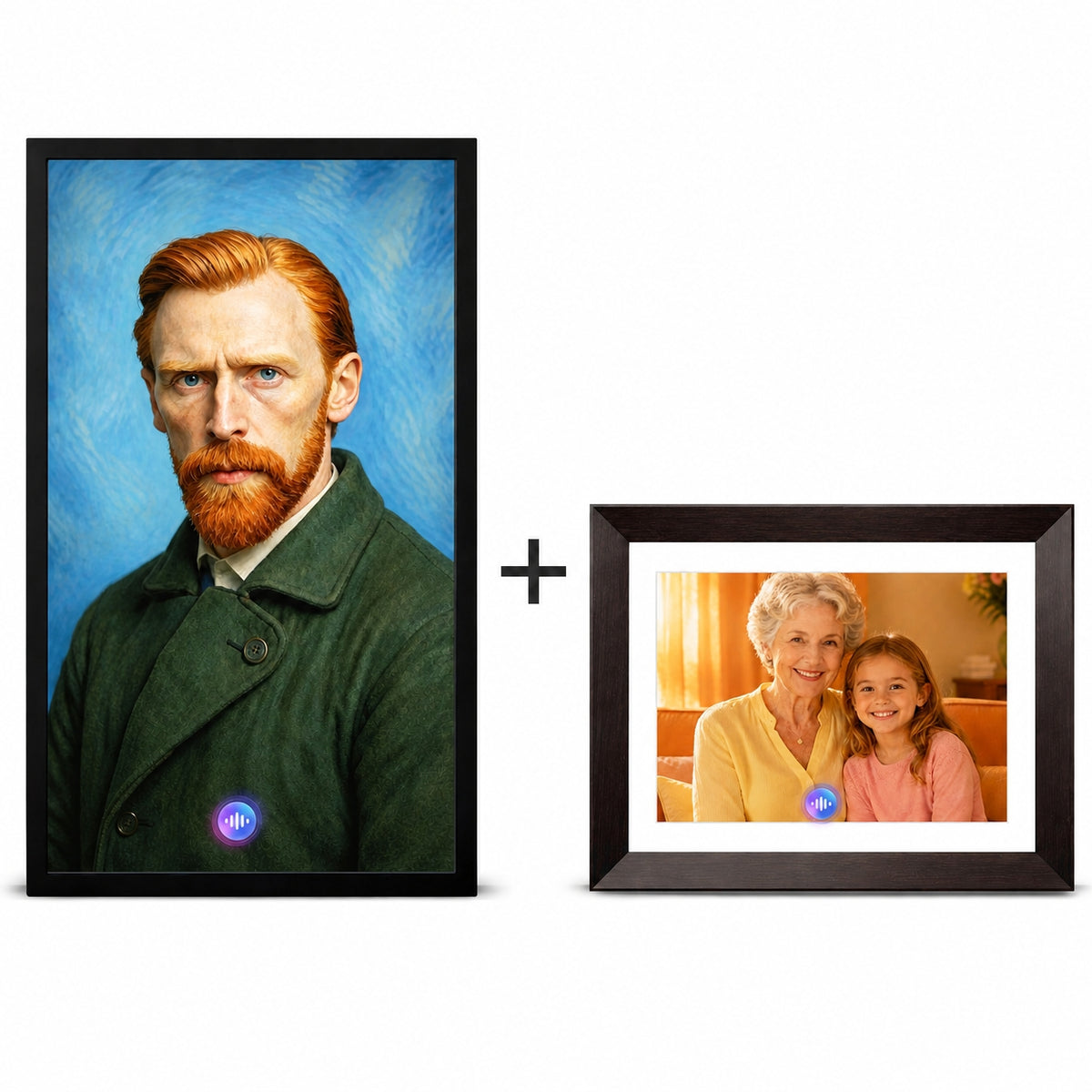
Interactive AI characters are the core innovation of Vinabot. This guide covers everything from creating your first character to advanced customization — including image requirements, personality design, conversations, wake words, preset Q&A, and knowledge base.
What Are AI Characters?
An AI character is a digital human generated by Vinabot from a photo you upload. Once created, the character can:
- Have real-time voice conversations — talk naturally, just like a real person.
- Show expressions and gestures — blink, nod, smile, and sync lip movements with speech.
- Speak in a custom voice — use a cloned voice or choose from dozens of official voices.
- Follow a defined personality — behave according to the background, traits, and speaking style you set.
- Learn from documents — answer questions based on knowledge base files you upload.
- Respond to a wake word — activate with a custom voice keyword.
You can create characters representing real family members, fictional personas, historical figures, or business assistants — anything you can describe, as long as you own or have permission to use the reference photo.
Creating a Character
There are two ways to start creating a character:
| Entry Point | Path |
|---|---|
| From the Home screen | Tap the "Create Character" card in the upper left corner |
| From the Assets page | Go to Assets → Character tab → tap "Create Character" |
Image Requirements
The photo you upload is the single most important factor in character quality. Follow these requirements closely:
| Parameter | Requirement |
|---|---|
| Format | JPG or PNG |
| File size | Under 10 MB |
| Content | Clear, front-facing, half-body portrait |
| Lighting | Sufficient and even — avoid too dark or too bright |
| Expression | Natural and front-facing — avoid exaggerated expressions |
| Background | Simple and uncluttered — complex backgrounds interfere with generation |
Bad examples: side profiles, group photos, blurry images, extreme lighting, busy backgrounds. Good examples: passport-style portraits, well-lit selfies against a plain wall.
After uploading, you can optionally select an image style from system presets to influence the character's overall visual appearance.
Character Profile — The Key to Personality
The character profile is where you define who your character is. This directly determines how they speak, what they know, and how they behave in conversations.
Character limit: 5,000 characters max (Chinese or English).
Four dimensions to describe:
| Dimension | What to Write | Example |
|---|---|---|
| Age & Identity | Who they are | "She is a 60-year-old retired teacher" |
| Background Story | Their life experience | "She taught English for 30 years and has countless students" |
| Personality Traits | How they think and feel | "Gentle, speaks slowly, warm and patient" |
| Speaking Style | How they express themselves | "Likes using idioms and poetry, addresses people as 'child' or 'young person'" |
Complete example:
She is a 60-year-old retired English teacher, gentle and deliberate in speech, fond of using idioms and poetry. She taught English for 30 years, has countless students, loves classical literature. She likes to address people as "child" or "young person," giving a warm and kind feeling.
Tip: The more detailed and vivid your description, the more realistic and consistent your character's personality will be. Think of it as writing a character profile for a story — every detail matters.
Choosing a Voice
Every character needs a voice. You have two options:
| Voice Source | Description |
|---|---|
| Official Voices | Dozens of preset voices categorized by gender and age group. Tap any voice card to preview it. |
| My Voices | Voices you've cloned using the Voice Cloning feature (requires cloning first — see Voice Cloning Guide). |
Important: Characters without a voice cannot be distributed to a device. You must assign a voice (official or cloned) before sending a character to your frame.
Character Name
- Limit: 20 characters max
- Naming suggestions: "Mom," "Dad," "My AI Assistant"
Advanced Settings (Optional)
After completing the basic information, you can expand "More Advanced Settings" for fine-grained control.
Conversation Language
Set the languages your character can speak and understand.
| Setting | Details |
|---|---|
| Languages supported | 40 including Chinese, English, Japanese, Korean, French, German |
| Maximum selection | Up to 5 languages per character |
| Default | Follows your app's system language |
Device limitation: On the interactive screen, you select one language at a time for conversation. The device does not yet support multilingual conversation within a single session — only language switching.
Wake Word
A wake word is a spoken keyword that activates a specific character. Instead of tapping the screen, you simply say the wake word to start a conversation.
| Parameter | Details |
|---|---|
| Character limit | 4–6 characters (Chinese) or 2–4 words (English) |
| Supported languages | Chinese and English only |
| Default | System wake word — "Hello Xiaohua" (Chinese) or "Hello Vina" (non-Chinese) |
Recommendations:
- Chinese: 4–6 characters, e.g., "Hello Xiaohua" (你好小华)
- English: 2–4 words, e.g., "Hello Vina," "Hey Buddy"
- Choose clear, easy-to-pronounce words; avoid rare characters
Tip: Each character can have a unique wake word. This allows multiple characters on the same device and lets you call a specific one by name.
Preset Q&A
Preset Q&A lets you define fixed question-and-answer pairs for your character. When a user asks a preset question, the character replies with the exact answer you configured, bypassing the AI generation process.
Use cases:
| Question | Preset Answer |
|---|---|
| "What's your name?" | "My name is Xiaomei, your virtual assistant." |
| "What's the weather like today?" | "I can't check real-time weather. I recommend checking a weather app." |
| "Tell me about our company" | "We are a technology company founded in 2020, specializing in..." |
Benefits:
- Makes responses more controllable and predictable
- Prevents irrelevant or off-topic answers
- Ideal for business use cases where accuracy is critical
Knowledge Base
Upload documents so your character can learn specialized knowledge. When answering related questions, the character prioritizes searching the knowledge base before generating a response.
| Parameter | Details |
|---|---|
| Supported formats | PDF, DOCX, TXT |
| Total size limit | Under 10 MB |
| Multiple files | Yes — upload multiple documents at once |
Use cases:
| Scenario | What to Upload |
|---|---|
| Corporate explainer | Company introduction, product manuals, FAQ documents |
| Historical figure | Historical materials, biographies, speeches |
| Family memorial | Family stories, memoirs, letters |
| Educational tutor | Course materials, study guides, reference texts |
How it works:
- Tap "Upload Knowledge Base" in advanced settings.
- Select files (supports multiple selection).
- System automatically parses document content.
- The character answers related questions based on knowledge base content.
Editing & Managing Characters
Editing a Character
You can edit a character at any time after creation. The editing behavior depends on the character's category:
| Category | Editing Behavior |
|---|---|
| Official Characters | Editing creates a copy in "My Characters" — the original remains unchanged. |
| My Characters | Editing directly overwrites the original character. |
Editing does not consume AI Credits. You can fine-tune your characters as many times as you like.
Character Status & Filtering
In the Assets → Character tab, you can filter characters by:
| Filter | Options |
|---|---|
| Category | All / Official Characters / My Characters |
| Status | All / Generating / Generated / Failed |
Batch Operations
Tap "Manage" in the upper right corner of the character list to enter batch mode:
| Action | Details |
|---|---|
| Batch Distribute | Only characters with "Generated" status can be distributed |
| Batch Delete | All selectable characters can be deleted; requires second confirmation |
Note: Characters currently being generated cannot be selected for batch operations.
Character Conversations
How Conversations Work
Vinabot uses advanced AI language models to understand your spoken questions and generate natural responses in real time. Conversations are designed to feel free-flowing and natural — not scripted or command-based.
Response generation: Each reply is generated based on:
- Your current conversation input
- The character's personality profile
- Knowledge base content (if uploaded)
- Preset Q&A matches (if the question matches a preset)
Conversation Memory
Vinabot does not retain conversation history across sessions. Each conversation is independent. To create a consistent experience without memory, use:
- Character Profile — gives the character a stable personality and background.
- Knowledge Base — provides reference material the character draws from.
- Preset Q&A — ensures consistent answers to specific questions.
Real-Time Information
When connected to the internet, Vinabot can answer questions about real-time topics such as weather, news, and general knowledge, depending on the AI service available.
Multilingual Conversations
On the app, you can switch between up to 5 configured languages. On the interactive screen device, you select one language at a time for conversation. Multilingual switching within a single conversation session on the device will be supported in future updates.
Character FAQ
Creation & Requirements
What photos work best? A clear front-facing half-body portrait (JPG/PNG, under 10 MB) with even lighting and a simple background. Avoid side profiles, group photos, complex backgrounds, and extreme lighting.
Can I create fictional characters? Yes. You can create original AI characters or other companions using content you own or have permission to use. You are responsible for ensuring you have the right to use any uploaded photos, voices, or content.
How long does generation take? Generation time varies. If it fails, Credits are automatically refunded.
Editing
Can I edit a character after creation? Yes. For Official Characters, editing creates a copy in "My Characters." For My Characters, editing overwrites the original. Editing is free — no Credits consumed.
Conversations & Interaction
Can I have natural, free-flowing conversations? Yes. Vinabot is designed for natural conversation, not predefined commands. Just speak naturally.
Does Vinabot remember previous conversations? No. Each conversation session is independent. Use the Character Profile, Knowledge Base, and Preset Q&A to maintain consistency across sessions.
How many languages can my character speak? Up to 5 languages can be configured per character. On the interactive screen, you select one language at a time — multilingual switching within a single session is coming in a future update.
Wake Words & Preset Q&A
What is a wake word? A spoken keyword (4–6 Chinese characters or 2–4 English words) that activates your character. Set it in Advanced Settings. The default is "Hello Xiaohua" (Chinese) or "Hello Vina" (non-Chinese).
Can each character have a different wake word? Yes. Each character can have a unique wake word, allowing you to call different characters on the same device.
What is Preset Q&A? A feature that lets you define fixed question-and-answer pairs. When a user asks a preset question, the character responds with your exact predefined answer — ideal for ensuring accuracy on specific topics.
What file types does the Knowledge Base support? PDF, DOCX, and TXT files. Total size must be under 10 MB. You can upload multiple files at once.