


Guide Overview
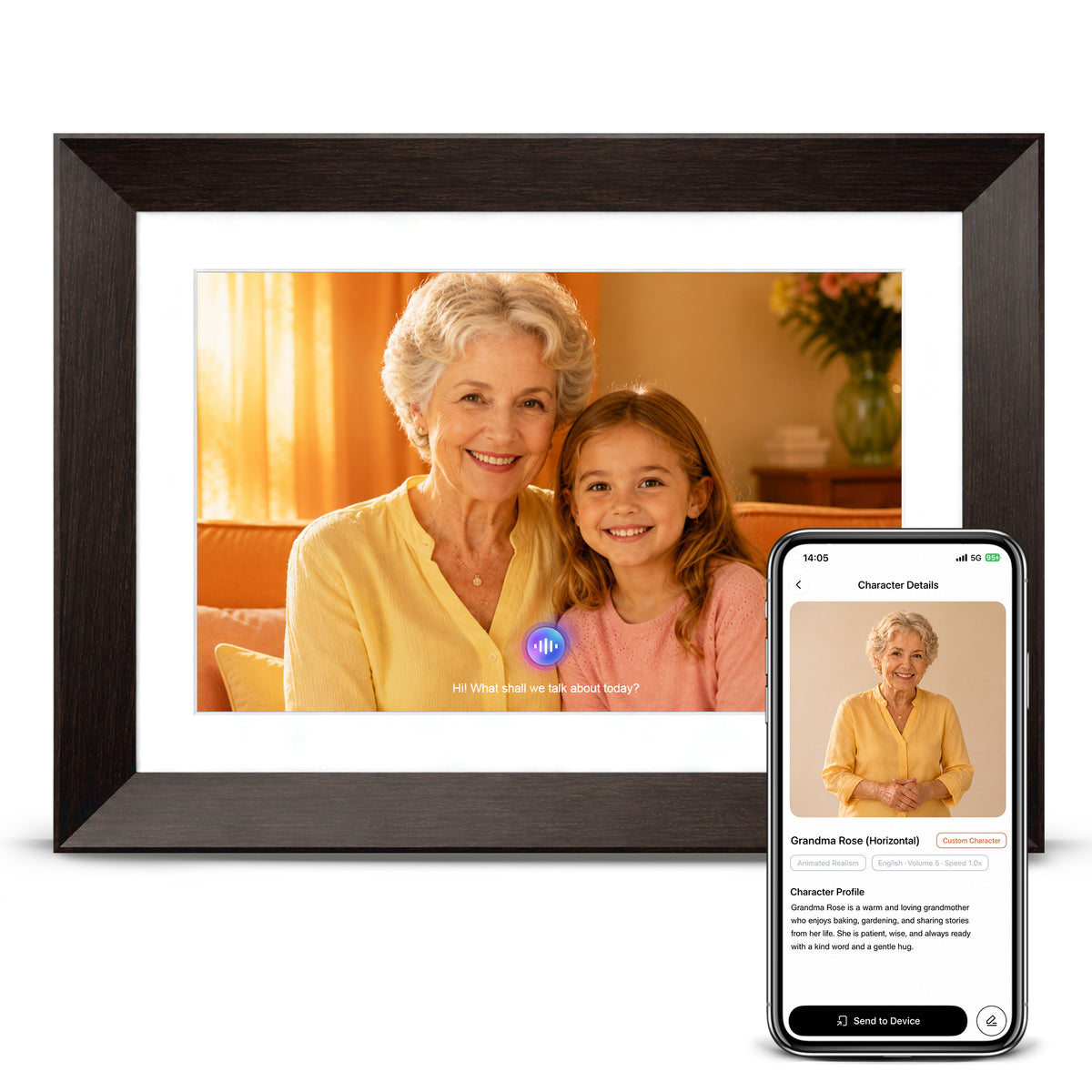
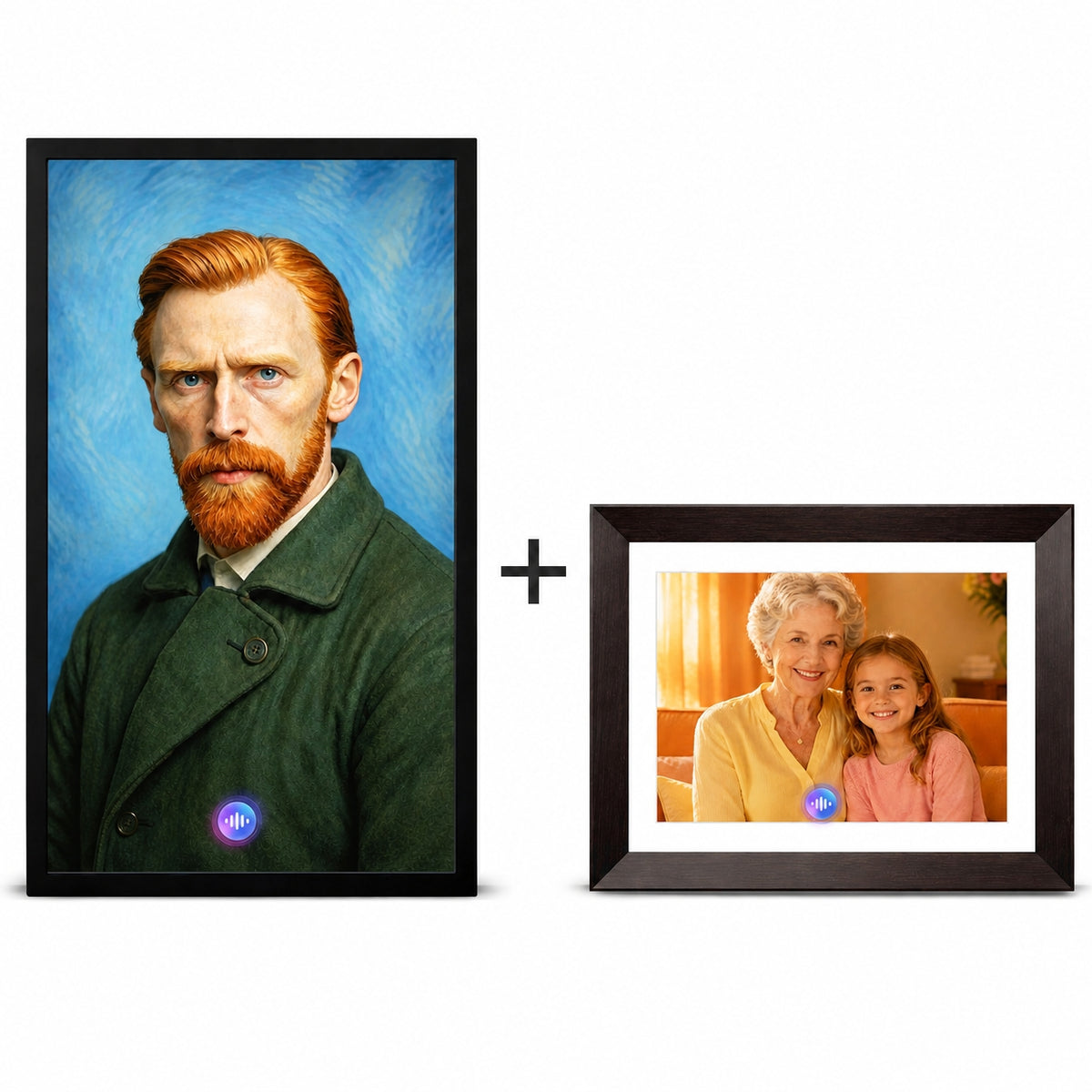
This guide is organized into three parts and covers the full Vinabot AI workflow, from generating images and videos with prompts and reference images to creating interactive AI characters that can hold real-time conversations.
| Part | What You Will Learn |
|---|---|
| Part 1 | AI Creation | Generate images, videos, and Photo Avatars with prompts and reference images. |
| Part 2 | AI Companions | Upload a portrait and create an AI Companion that can converse in real time. |
| Part 3 | Credits & Support | Understand AI credit usage and troubleshoot common issues. |
Contents
- What AI Creation Can Do
- Where to Start
- Choose a Generation Model
- Adjust Generation Settings
- Write Effective Prompts
- Use Reference Images
- Use @Image for Precise Multi-Image Control
- Photo Avatar: Make a Photo Speak
- Processing Time and Results
- AI Companion: Create a Real-Time Conversational Persona
- AI Credits: Usage and Top-Ups
- Troubleshooting
Part 1 | AI Creation
Use prompts and reference images to create images, videos, and talking-photo content.
1. What Can AI Creation Do?
Vinabot turns ideas into images and videos without requiring design skills. Every generated item is saved in Assets, where it can be previewed, downloaded, sent to a frame, or used as source material for an AI Companion.
| Content Type | What You Can Create |
|---|---|
| AI Images | Original images from text prompts, with optional reference images and style guidance. |
| AI Videos | Short videos generated from prompts or images, plus Photo Avatar videos that make a portrait speak. |
Tip:
Generated images can be used to create AI Companions. Generated videos can be played directly on a Vinabot frame.

Image Generation tab

Video Generation tab
2. Where to Start
You can begin a creation in either of these ways:
| Entry Point | Path |
|---|---|
| Create | Tap AI Tools in the upper-right corner, then switch between Image Generation and Video Generation in the top navigation. |
| Assets | Open the Images or Videos tab, then tap Generate Image or Generate Video in the upper-left corner. |

AI Tools

Assets → Images / Videos
3. Choose a Generation Model
Models differ in visual style, capability, and AI credit cost. Each model card shows its name, description. Choose a model that matches your goal, such as realistic photography, illustration, anime, or cinematic video.

AI Model
4. Adjust Generation Settings
Available settings depend on the selected model. Configure the following options before generating:
| Setting | Purpose |
|---|---|
| Resolution | Controls output clarity. Higher resolutions generally require more credits. |
| Aspect Ratio | Sets the canvas shape, such as portrait, landscape, or square. |
| Number of Outputs | Generates multiple image variations in one batch. |
| Video Duration | Sets video length. Longer videos generally require more credits. |
Tip:
After you select a model, the app automatically displays the values supported by that model.

IMG Parameter Panel — Resolution / Aspect Ratio / Number of Generations

VIDEO Parameter Panel — Resolution / Aspect Ratio / Duration
5. Write Effective Prompts
The more specific your description is, the more predictable the result will be. Use this formula:
| Subject | Setting | Style | Details |
|---|---|---|---|
| Who or what appears | Where the scene takes place | The visual treatment | Lighting, mood, color, pose, camera angle, and texture |
Example: A young woman standing beneath cherry blossoms, fresh Japanese editorial style, sunlight filtering through the leaves onto her face, soft warm lighting.
- Be specific. “A golden retriever puppy sitting on a wooden porch at golden hour with a softly blurred background” is stronger than “a dog.”
- Name the style: realistic, oil painting, watercolor, cinematic, anime, or 3D render.
- Describe lighting and mood. Warm or cool, bright or dramatic, and calm or energetic choices strongly affect the result.
- Read the model description first; some models specialize in particular visual styles.

Enter a complete prompt in the description field

Generated Result Preview
6. Use Reference Images
Reference images let the model see the subject, composition, or style you want. Upload from Device Photos or select an existing image from Assets.
| Requirement | Recommendation |
|---|---|
| Format | JPG, JPEG, or PNG |
| File Size | Less than 10 MB |
| Image Quality | Use a clear image with a recognizable subject and a simple background whenever possible |
After uploading, you can replace an image by selecting another file from Device Photos or Assets, or remove it from the project.

Reference Image Access — System Gallery / My Assets

Uploaded reference images, including "Replace / Delete" options.
7. Use @Image for Precise Multi-Image Control
When several reference images are uploaded, @Image lets you define exactly how each image should be used in the final result.
- Upload multiple images. The app labels them Image1, Image2, Image3, and so on.
- Type @ in the description field to open the image-reference menu.
- Select the image you want to reference, then continue writing the instruction.
Example: @Image1 is sitting in the corner of a cafe. Sunlight falls across @Image2 on the table. @Image1 picks up @Image2 and takes a sip.
Tip:
This method is ideal when a specific person must appear in a specific setting or interact with a particular object.

Working with multiple reference images

Generated result created by combining @Image1 and @Image2.
8. Photo Avatar: Make a Photo Speak
Photo Avatar combines a still portrait with a voice script to generate a video in which the person appears to speak. It works well for product introductions, welcome messages, and meaningful memory videos.
Entry: Video Generation > Photo Avatar tab.
Step 1: Upload a Portrait
Tap Upload Image and choose a photo from Device Photos or Assets. For best results, use a clear, front-facing, unobstructed upper-body portrait with even lighting and a simple background.
Step 2: Enter the Voice Script
Write the words the person should say. Use clear, natural, conversational language; avoid rare characters and unnecessary symbols; and treat the script as a short spoken monologue.
Step 3: Choose a Voice
Select an Official Voice or one of My Voices. Preview the voice, then adjust volume and speaking speed if those controls are available.
Important:
The image, voice script, and selected voice are all required.
Step 4: Generate
Tap Generate after all required fields are complete. If your balance is insufficient, the app will ask you to add credits. Otherwise, the required credits are deducted and processing begins. The finished video is saved automatically under Assets > Videos, where it can be previewed, sent to a frame, or downloaded.

Photo Avatar generation

Tap "Generate," then locate the finished video under Assets → "Videos."
9. Processing Time and Results
AI generation usually finishes within three minutes. You may return to Home or browse other areas of the app while processing continues. The result appears automatically in Assets when complete; you do not need to remain on the generation page.
Tip:
If processing takes significantly longer than three minutes, see Section 12, Troubleshooting.
Part 2 | AI Companions
Upload a portrait and create a digital persona that can hold real-time conversations.
10. AI Companion: Create a Real-Time Conversational Characters
AI Companion is a core Vinabot feature. A character created from your portrait can speak naturally, display facial motion, use an official or cloned voice, follow a defined personality, reference uploaded documents, and respond to a custom wake word.
- Real-time voice conversation with natural responses
- Facial expressions and motion such as blinking, nodding, smiling, and lip synchronization
- Official voices or a compatible cloned voice
- A custom background, personality, knowledge scope, and speaking style
- Answers grounded in uploaded Knowledge Base files
- Hands-free activation with a custom wake word
You may create a character based on a real family member, fictional persona, historical figure, or business assistant, provided that you own or are authorized to use the reference image.

Basic Profile Creation Page — Photo + Name + Bio + System Voice

Advanced Creation Page — Language + Wake Word + Q&A + Knowledge Base
Step 1: Create a Character
Start from Character on the Home screen or from Assets > Characters, then complete the portrait, name, profile, and voice fields.
| Portrait Requirement | Guidance |
|---|---|
| Framing | Use a upper-body portrait. |
| Face | Keep the full face visible and unobstructed. |
| Lighting | Use even, natural lighting; avoid strong backlight and deep shadows. |
| Background | Choose a clean, uncluttered background. |
| Avoid | Side profiles, group photos, blur, extreme lighting, and crowded scenes. |
After uploading, you can optionally select a preset image style to influence the character’s overall appearance.

Upload an upper-body portrait

After uploading a portrait, you can "change style," "replace," or "delete" it, and enter the name, character bio, and voice.

Character list, including entry points for "Create / Manage" and generation progress.
Step 2: Character Profile
The profile defines who the character is and directly affects speaking style, knowledge scope, and conversational behavior. The maximum length is 5,000 characters. For consistent results, describe:
| Dimension | What to Include |
|---|---|
| Identity | Age, role, occupation, and relationship to the user |
| Background | Life experience, expertise, interests, and relevant history |
| Personality | Warm, calm, humorous, precise, patient, energetic, or other traits |
| Speaking Style | Preferred tone, vocabulary, response length, recurring expressions, and boundaries |
Example: She is a 60-year-old retired English teacher who speaks gently and in an organized way. She taught for 30 years, loves classical literature, and occasionally uses idioms and lines of poetry. She often addresses the listener as “my dear” or “young friend,” creating a warm and reassuring presence.
Step 3: Voice and Name
Every character requires a voice. Choose an Official Voice or a compatible voice from My Voices. Preview the selection and adjust volume or speaking speed where supported.
Important:
A character without a configured voice cannot be sent to a device.
Character names may contain up to 20 characters. Short, natural names such as Linda, Dad, or Grandma work best.
Step 4: Advanced Settings
Conversation Language: Configure the language the character can understand and speak. An interactive frame can use one conversation language at a time; switching languages within a single device session is not currently supported.
Wake Word: A spoken keyword that activates a character without touching the screen. Use 4-6 Chinese characters or 2-4 English words. Choose words that are clear, easy to pronounce, and unlikely to be confused with everyday speech.
Preset Q&A: Define fixed question-and-answer pairs. When a question matches a preset, Vinabot returns the approved answer instead of generating a new one. This improves consistency and is especially useful for business information that must remain accurate.
Knowledge Base: Upload one or more supported documents. Vinabot parses the files and prioritizes relevant Knowledge Base content when answering related questions. Use it for product manuals, company information, training material, personal stories, or specialist references.
Step 5: Edit and Manage Characters
You can edit a character after creation. Editing does not consume AI credits, so you can refine the name, profile, voice, and advanced settings whenever needed. Under Assets > Characters, use filters to find characters by status or category. Tap Manage to enter batch mode and send or delete multiple characters. Characters still being generated cannot be included in batch actions.
Step 6: Talk with a Character
Vinabot uses AI language models to understand spoken questions and generate natural responses in real time. Each response considers the current user input, the Character Profile, Knowledge Base content, matched Preset Q&A, and the current-session conversation context.
Conversation Memory: Vinabot does not retain conversation history across separate sessions. Use a detailed Character Profile, Knowledge Base, and Preset Q&A to maintain a consistent experience without long-term memory.
Real-Time Information: When an eligible online service is available, Vinabot can answer topics such as weather, news, and general knowledge. Availability and freshness depend on the current AI service.
Multilingual Support: The app can store up to five configured languages. The interactive frame uses one conversation language at a time. In-session language switching on the device is planned for a future version.
Part 3 | AI Credits and Support
11. AI Credits: Usage and Top-Ups
The credits required for each generation depend on the selected model, resolution, duration, and other parameters. The app displays the required amount on the model card before generation begins.
Monthly AI credits can be used across all supported generation types. Higher resolution, longer video duration, and more complex generation settings generally consume more credits.
| Action | Credit Behavior |
|---|---|
| Start a generation | The required credits are shown before you confirm. |
| Successful generation | Credits are deducted according to the selected model and settings. |
| Insufficient balance | The app prompts you to purchase additional credits. |
| Failed generation | Credits are returned automatically when the task is confirmed as failed. |

Credit consumption displayed on the model card prior to generation

Insufficient Credits → Top-up
12. Troubleshooting
| Issue | Recommended Action |
|---|---|
| Generation takes longer than expected | Confirm that the device has a stable internet connection. Cloud processing is required. Check Assets again after a few minutes. |
| Generation fails | Review the prompt and simplify it if necessary. Confirm that uploaded files meet the format, size, and image-quality requirements. |
| The result does not match the request | Add concrete details for subject, setting, style, lighting, and composition. Use reference images and @Image when several elements must be controlled. |
| A character cannot be sent to a frame | Confirm that the character has a configured voice and has finished generating. |
| Credits appear incorrect after a failure | Refresh the Assets or account page. Credits from a confirmed failed task are returned automatically. |
If failures continue, contact support@vinabot.ai and include the device information, a description of the steps taken, and screenshots of the error. These details help the support team investigate more quickly.