


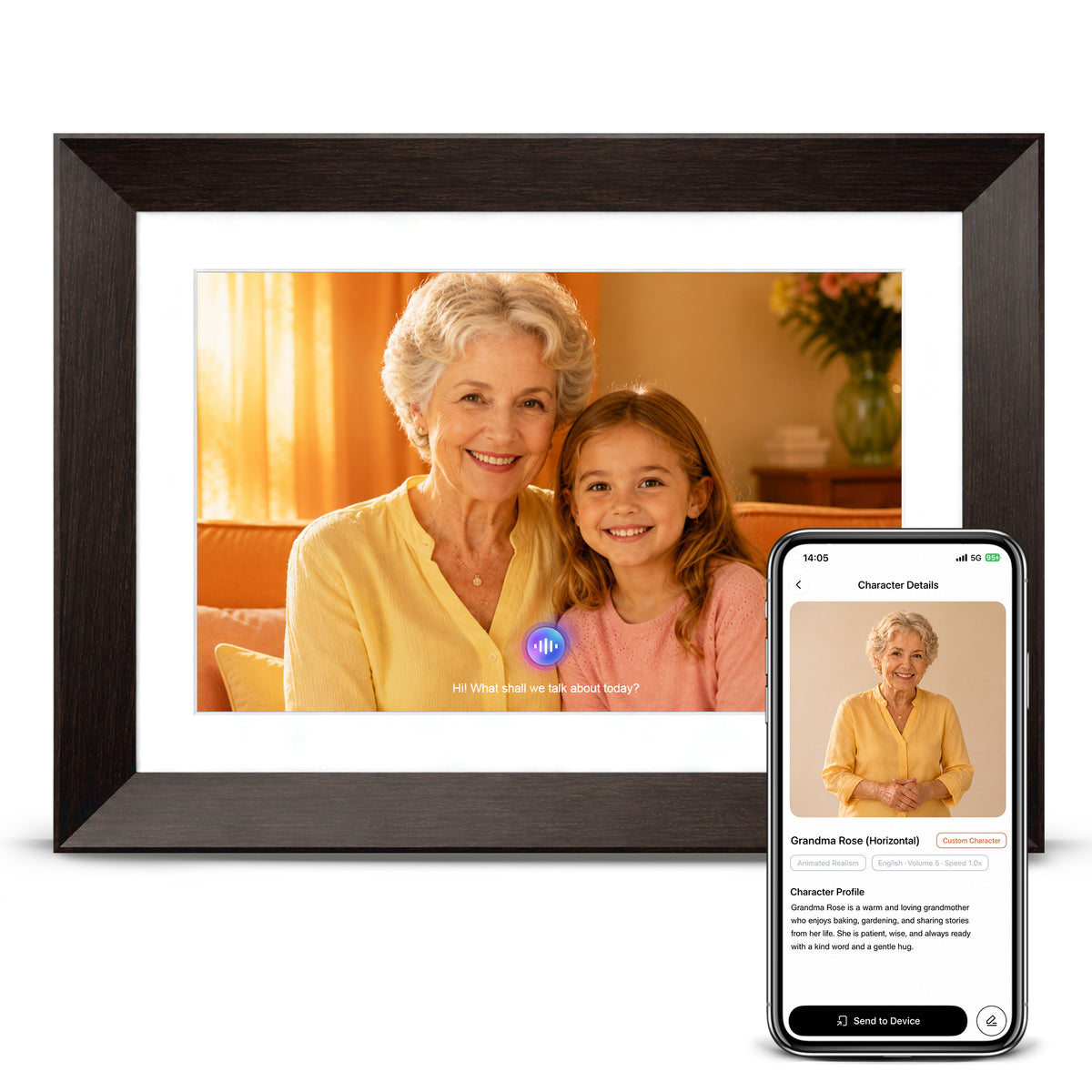
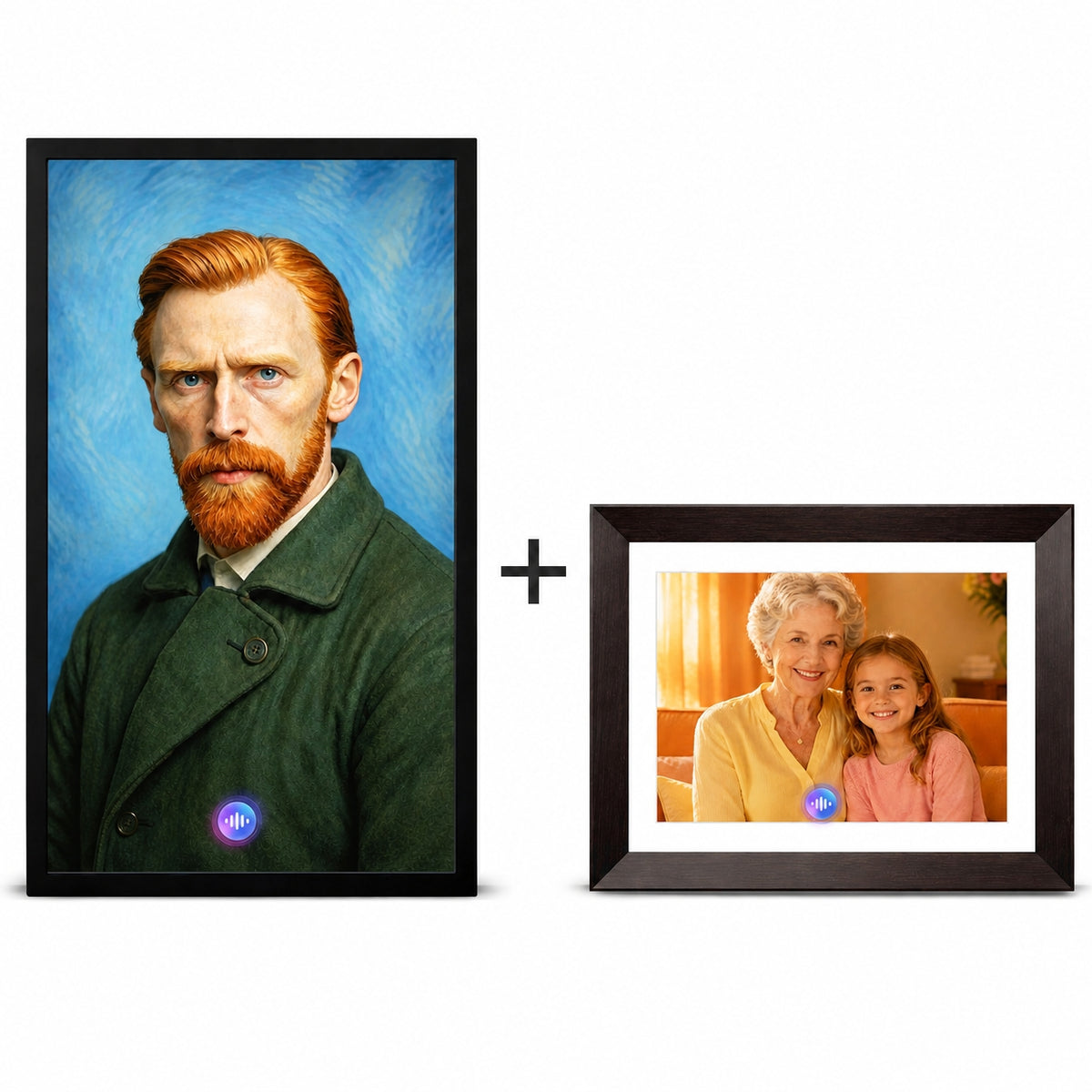
VINABOT AI Feature Troubleshooting Guide
For image generation video generation AI Characters voice cloning and AI conversations
Customer Support Edition
Updated September 2026
Support: support@vinabot.ai
About This Guide
This guide helps VINABOT users diagnose and resolve the most common AI feature issues. Start with the quick checks below, then go to the section that matches the symptom you see. Most problems can be resolved by confirming the expected processing time, network connection, AI credit balance, and source file quality.
Contents
- Quick Diagnostic Checklist
- Generation Is Stuck or Fails
- AI Character Troubleshooting
- Voice Cloning Troubleshooting
- AI Credits and Feature Availability
- Knowledge Base Questions
- Frequently Asked Questions
- Contact VINABOT Support
1 Quick Diagnostic Checklist
Complete these checks before changing your content or starting the task again.
| Check | What to Do | Expected Result |
|---|---|---|
| Processing time | Allow up to 3 minutes for image and video generation. Allow up to 30 minutes for an AI Character. | The item appears in Assets when processing finishes. |
| Internet connection | Confirm that the phone running the VINABOT app is online. Switch between Wi-Fi and mobile data if needed. | The app can upload source files and receive the generated result. |
| AI credits | Check the available AI credit balance before starting another task. | The task can start and finish without an insufficient-credit message. |
| App status | Close and reopen the app if the task may have completed but the screen has not refreshed. | The latest task status appears in Assets. |
| Source material | Confirm that the photo, audio, prompt, and file format meet the requirements in this guide. | The task passes validation and begins processing. |
Recommended Order
- Wait for the normal processing window to finish.
- Check the internet connection and AI credit balance.
- Refresh or restart the VINABOT app.
- If the task is clearly stuck, cancel it, review the source material, and try again.
- If the task displays Generation Failed, follow Section 2 before contacting support.
2 Generation Is Stuck or Fails
2.1 Generation Takes Too Long
Image and video generation normally finishes within 3 minutes. AI Character generation can take up to 30 minutes. Actual processing time may vary with network quality and server demand.
- Keep the phone connected to the internet while source files are uploading.
- Open Assets to check whether the result is already available.
- Close and reopen the app if the displayed status has not changed.
- If the task remains unchanged well beyond the expected window, cancel it and start again with verified source material.
2.2 Generation Failed
Credit refund. Credits used by a failed generation are returned automatically. The updated balance may take 1 to 2 minutes to appear.
- Confirm that the uploaded photo, audio, or document meets the relevant requirements in this guide.
- Shorten or simplify an unusually long prompt while keeping the subject, setting, style, and essential details.
- Check the internet connection and restart the app.
- Wait 10 to 30 minutes before trying again if the service may be busy.
- Contact support@vinabot.ai if the same task continues to fail.
2.3 Before You Retry
| Input | Verify Before Retrying |
|---|---|
| Image | Clear, supported format, under the applicable size limit, and free of severe blur or obstruction. |
| Audio | MP3, WAV, or M4A; 10 to 30 seconds; one clear speaker; no strong background noise. |
| Prompt | Clear and concise. Remove conflicting instructions and unnecessary repetition. |
| Knowledge Base | PDF, DOCX, or TXT files with a combined size of no more than 10 MB. |
3 AI Character Troubleshooting
3.1 Portrait Requirements
The source portrait is the most common cause of AI Character generation problems. Use a photo that meets all of the following conditions.
| Use | Avoid |
|---|---|
| A front-facing portrait with the subject looking toward the camera | Side profiles or a subject looking away |
| A head-and-shoulders or upper-body photo | An extreme face close-up or distant full-body photo |
| One person only | Group photos |
| A fully visible face | Sunglasses, masks, heavy hair obstruction, or other face coverings |
| Bright, even lighting | Backlighting, deep shadows, or overexposure |
| A clear, high-resolution original | Blur, pixelation, heavy beauty filters, or compressed downloads |
3.2 The Character Was Created but Cannot Be Used
| Symptom | Resolution |
|---|---|
| The character cannot start a conversation | Open the character editor and assign an Official Voice or a cloned voice. |
| The character cannot be sent to a frame | Assign a voice first. A character without a voice may display No Voice and cannot be distributed to a device. |
| The character speaks the wrong language | Edit the character and select the correct conversation language. VINABOT supports multiple languages, with up to five configured languages per character. |
| The answers are unrelated or too general | Add a Knowledge Base file or create Preset Q&A entries for information that must be answered consistently. |
3.3 The Character Does Not Closely Resemble the Photo
An AI Character is generated from the source portrait and will not be a pixel-for-pixel copy. Small differences are expected because the character adds natural facial movement such as blinking and smiling.
- Use a front-facing image with the head upright and centered.
- Use soft, even natural light and avoid strong backlight or heavy facial shadows.
- Upload the original high-resolution photo rather than a compressed copy downloaded from a messaging app.
- Choose a neutral, natural expression instead of an extreme smile or frown.
- Use a recent photo if the person’s appearance has changed.
- Reduce accessories that hide or distort facial features, including reflective glasses, hats, and heavy makeup.
If the first result is not satisfactory. Try again with a clearer portrait that follows the requirements above.
4 Voice Cloning Troubleshooting
4.1 Audio Requirements
| Item | Requirement |
|---|---|
| Format | MP3, WAV, or M4A |
| File size | No more than 10 MB |
| Duration | 10 to 30 seconds |
| Speakers | One person only |
| Quality | Clear speech with minimal background noise and echo |
Consent and authorization. Clone only your own voice or a voice you are authorized to use.
4.2 Common Voice Cloning Problems
| Problem | Recommended Fix |
|---|---|
| The recording is shorter than 10 seconds | Record at least 10 seconds of continuous natural speech. |
| The recording is longer than 30 seconds | Trim it to a clear 15 to 25 second segment. |
| Background noise is audible | Record again in a quiet room. Turn off televisions, music, fans, and other noise sources. |
| More than one voice is present | Use a clip containing only the intended speaker. |
| The file format is unsupported | Convert the file to MP3, WAV, or M4A. |
| The file is too large | Trim or compress the audio until it is under 10 MB. |
| The voice is quiet or muffled | Move closer to the microphone and speak at a normal, steady volume. |
4.3 Recording Tips in the App
- Choose a small, quiet room. Curtains, rugs, and soft furnishings can reduce echo.
- Speak naturally at a normal pace. Do not speak unusually fast or slow.
- Use your normal speaking voice. Do not sing or imitate another person.
- Listen to the full recording before submitting it. Record again if you hear noise, clipping, or echo.
5 AI Credits and Feature Availability
| Available Without AI Credits | Requires AI Credits |
|---|---|
| Play photo and video slideshows | Hold AI Character conversations |
| Use the digital calendar and clock | Generate new AI Characters, images, or videos |
| Send and view existing content | Clone a voice |
| Use the AI voice assistant | NO |
Failed tasks. A confirmed failed generation does not permanently consume credits. The credits are returned automatically.
6 Knowledge Base Questions
A Knowledge Base helps an AI Character provide more accurate and personalized answers. Upload PDF, DOCX, or TXT files with a combined size of no more than 10 MB. The character can reference this content during conversations.
| Knowledge Base Content | Example Use |
|---|---|
| Family history or story document | The character can discuss documented family stories and events. |
| Product manual | The character can answer product setup and usage questions. |
| Personal memoir | The character can respond using the supplied memories and background information. |
For exact approved wording. Use Preset Q&A when a specific question must always receive a fixed answer.
7 Frequently Asked Questions
How long does AI generation take
Image and video generation normally finishes within 3 minutes. AI Character generation can take up to 30 minutes. Network quality and current service demand can affect processing time.
Will a failed generation use my credits
No. Credits for a confirmed failed generation are returned automatically. If the balance has not updated after several minutes, contact support@vinabot.ai.
Can I edit a character after creating it
Yes. Open the character editor to update the name, profile, voice, language settings, wake word, Knowledge Base, and Preset Q&A.
Can one cloned voice be used by multiple characters
Yes. After the voice has been cloned successfully, it can be assigned to multiple AI Characters or Photo Avatars, subject to applicable authorization and consent.
Why are AI Character answers inconsistent
Add a detailed Character Profile and a relevant Knowledge Base. Use Preset Q&A for questions that require an exact, repeatable answer.
8 Contact VINABOT Support
If the steps in this guide do not resolve the issue, contact VINABOT Support and include enough information for the team to reproduce the problem.
- Order number and device model
- A clear description of what you attempted and what happened
- A screenshot of the complete error message or task status
- The original photo, audio file, prompt, or document used in the failed task, when relevant
- The approximate date and time of the issue
| Support Channel | Details |
|---|---|
| VINABOT app | Profile > Support |
| support@vinabot.ai |
Document updated September 2026. For additional help, visit the VINABOT Help Center or contact VINABOT Support.